VPN Server Installation
The VPN server for the platform is the system that allows participants to connect to the target infrastructure as well as keeping track of the findings.
The following guide covers the installation of the needed applications on OpenBSD 7.7 to act as a VPN gateway.
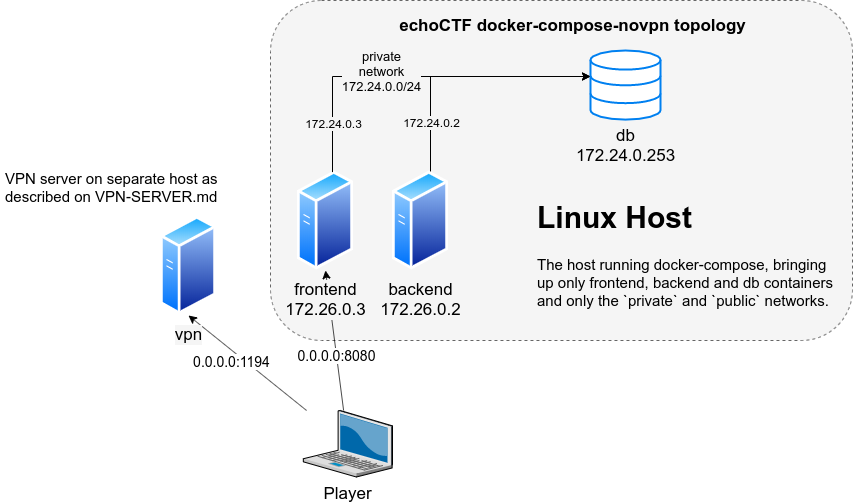
Before you start ensure you have the db server up and running as the VPN needs to connect to the database server to operate. Check the DOCKER-COMPOSE-NOVPN.md
The following network details will be used throughout this guide
- vpn server egress interface:
em0 - vpn server egress address:
172.26.0.1 - vpn server targets interface:
em1 - vpn server targets address:
10.0.160.254/24 - vpn server tun0 address:
10.10.0.1 - vpn server assigned range:
10.10.0.0/16 - targets network:
10.0.100.0/16 - mysql/memcache server:
172.24.0.253
There is an experimental playbook you can run locally on your OpenBSD that will configure all that is needed for you.
Before you start ensure you are able to access your existing database from the server by running something like the following
nc -zv 172.24.0.253 3306
nc -zv 172.24.0.253 11211
NOTE: If you’re using the supplied docker-compose without VPN this IP will be
the IP of the docker host and not the container.
pkg_add -vvi git ansible
git clone https://github.com/echoCTF/echoCTF.RED.git
cd echoCTF.RED/ansible
ansible-playbook runonce/vpngw.yml
Once you answer the questions asked you are set to go.
If you rather to execute the playbook in a non interactive mode, copy the
file examples/default-settings.yml and edit it to match your setup.
cp examples/default-settings.yml settings.yml
ansible-playbook runonce/vpngw.yml -e '@settings.yml'
Restart the system and once it comes back up following the instructions at After restart and you should be up and running.
After restart
Set the mail FROM system configuration key
./backend/yii sysconfig/set mail_from dontreply@example.red
Note that in order to allow registrations from the web interface you need to also set the following sysconfig keys
./backend/yii sysconfig/set mail_fromName "Mail From Name"
./backend/yii sysconfig/set mail_host smtp.host.com
./backend/yii sysconfig/set mail_port 25
Create a backend user and a frontend user by executing the following commands
# backend user
./backend/yii user/create username email password
# frontend player
./backend/yii player/register "username" "email" "fullname" "password" offense 1
Keep in mind that by default the system comes up in maintenance mode, which means
that services are only accessible to administrators. You can remove the maintenance
mode by flushing the <maintenance> pf tables eg: pfctl -t maintenance -T flush.
If you want to make the change permanent remove the contents of /etc/maintenance.conf.